 Back to resources
 How to block YouTube on Android (2026 Guide)
For iPhones or iPads see How to Block YouTube on iPhone or iPad.
- How to delete or block YouTube app
- How to block YouTube in web browsers
- Use Cocopine app instead of YouTube!
How to delete or block YouTube app
YouTube is made by Google, who owns the Android operating system, and they don’t want you to easily get rid of it. Thus removing YouTube on Android is more complicated than on iOS.
We recommend the following ways of blocking YouTube:

Disable YouTube app
Disabling the YouTube app will ensure your child cannot find or use it. That said, keep in mind that an older tech savvy child could potentially re-enable the app from the settings.
We found that the following method works across multiple types of Android devices:
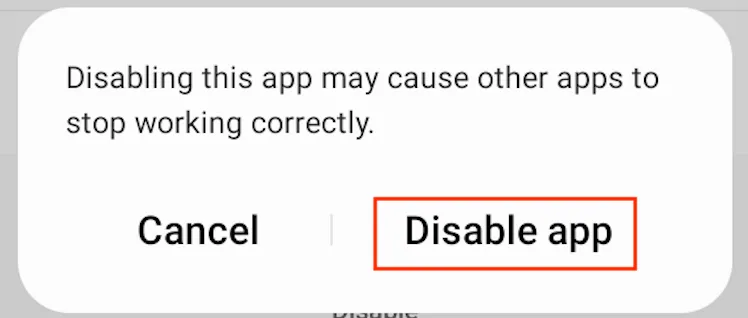
Go to Settings → Apps → find and tap YouTube → Tap Disable → Confirm your choice
Screenshots below are from a Samsung Galaxy Tab device.

Tap Disable

Confirm by tapping Disable app
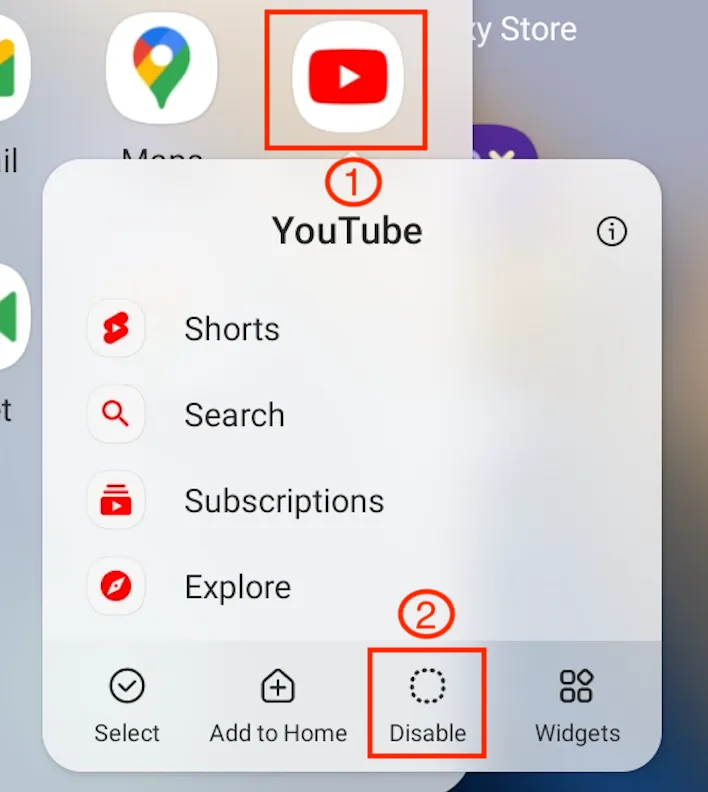
Alternatively, you can disable YouTube without going into Settings by tapping and holding on the Android app icon
Tap and hold the YouTube app icon. Tap Disable
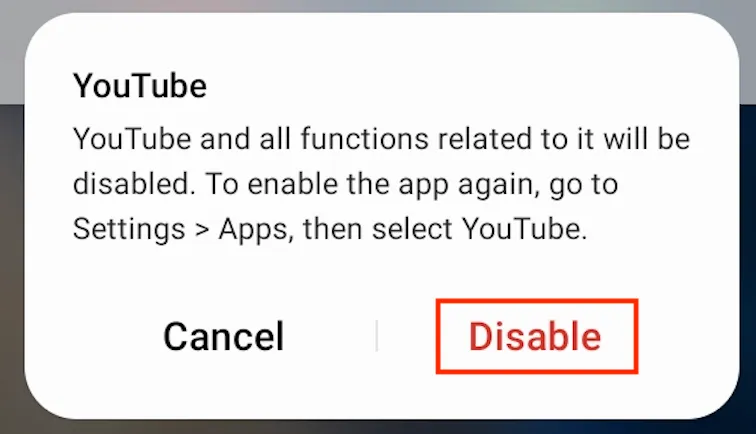
Tap Disable again
Use third party Parental Control app
We do not have a specific recommendation on which app to pick. You can choose one that you like more from multiple options.
How to block YouTube in web browsers
Do not block youtube.com with Family Link’s blocked sites, DNS filters or website blocker apps. The Cocopine app plays videos through YouTube’s official player, so blocking youtube.com will also stop videos from playing in Cocopine. Instead, block the web browsers your child could use to open YouTube:
- Block Chrome with Google Family Link
- Remove other browsers
- Require approval for new apps
- Lock the device to Cocopine with App pinning
Block Chrome with Google Family Link
Your child’s device needs to be supervised with Google Family Link. If you haven’t set it up yet, follow Get started with Family Link first.
Open the Family Link app on your device (Play Store, App Store) and select your child. Tap App limits
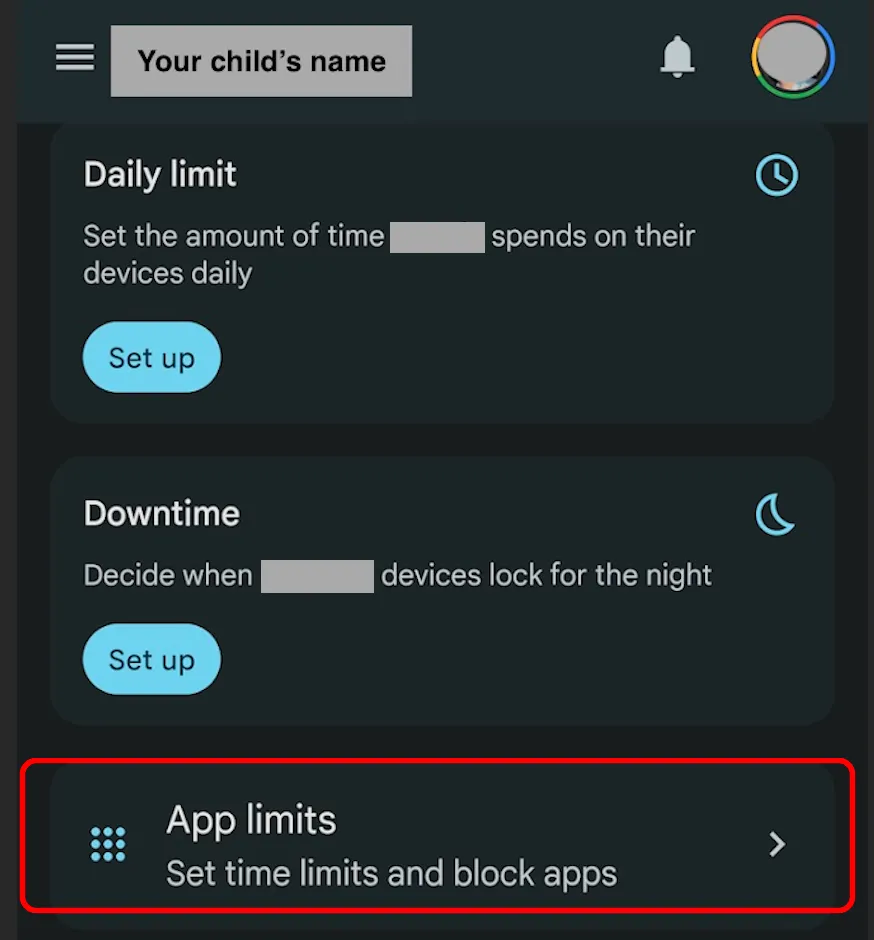
Find Chrome, tap it and select Block
Remove other browsers
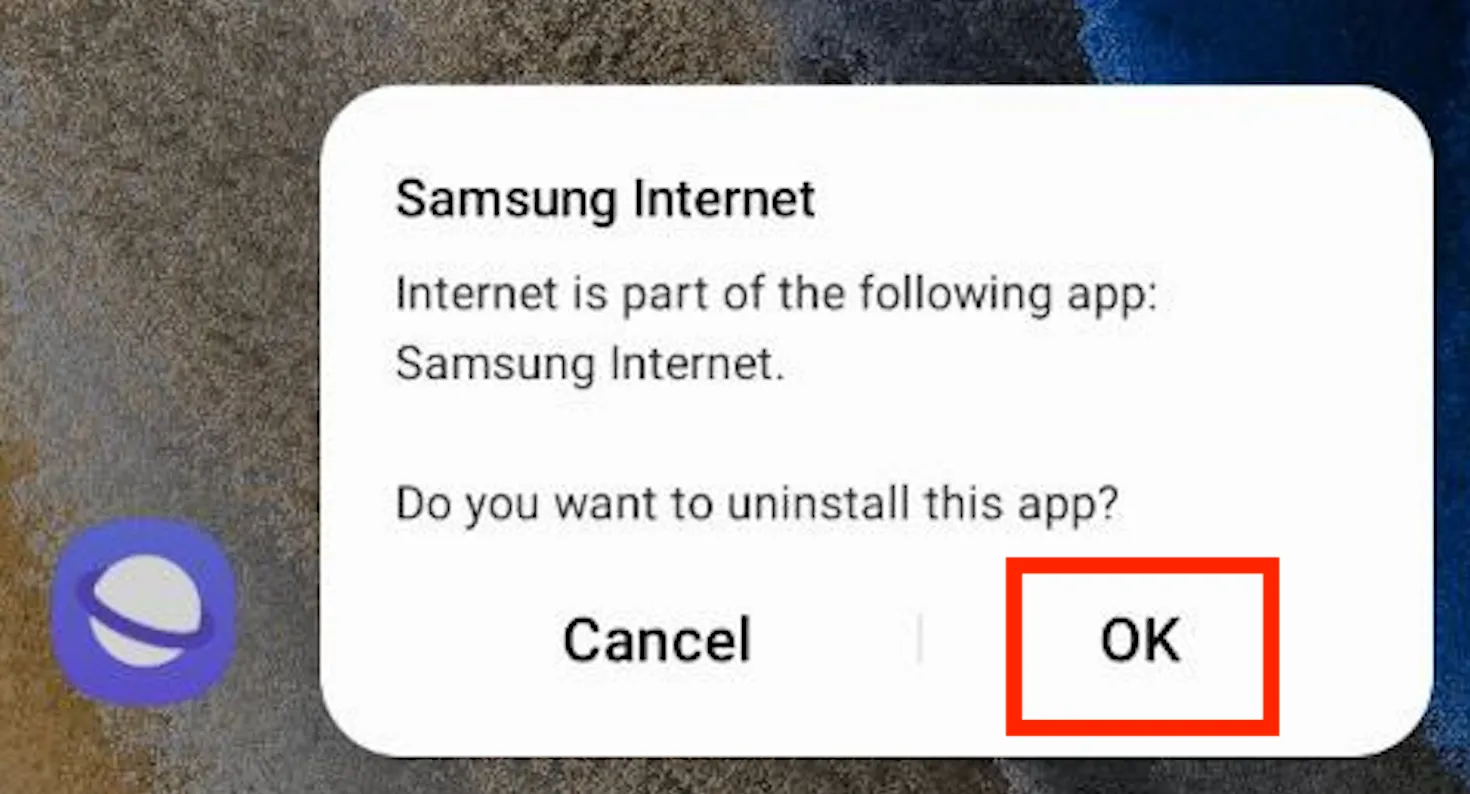
Many Android devices come with a second browser. For example, on Samsung Galaxy Tab you need to uninstall the default Samsung Internet app, or block it in Family Link the same way as Chrome:
Require approval for new apps
To make sure your child can’t install a new browser:
In Family Link, go to Content restrictions → Google Play and set Approvals to require your approval for all content
Lock the device to Cocopine with App pinning
For younger kids, the simplest option is App pinning. It keeps a single app on the screen, so your child can’t leave Cocopine without your PIN.
Go to Settings → Security → App pinning (on Samsung: Settings → Security and privacy → More security settings → Pin app). Turn it on together with Ask for PIN before unpinning
Open Recent apps, tap the Cocopine icon and select Pin
To unpin, swipe up and hold (or press and hold Back and Recents), then enter your PIN.
Use Cocopine app instead of YouTube!
Now that you have removed YouTube, use the Cocopine app to get peace of mind about your child’s screen time. Shield your child from inappropriate content and create an enriching experience for him or her with educational videos, prescreened intellectually engaging content, courses, and more!