 Back to resources
 How to block YouTube on iPad (2026 Guide)

This guides will walk you through steps you should take to block YouTube on an iPad or an iPhone. For Android devices see How to Block YouTube on Android.
- How to delete or block YouTube App
- How to block YouTube in web browsers
- Use Cocopine app instead of YouTube!
How to delete or block YouTube App
We’ve found that the three options below are best suited for blocking or deleting the YouTube app on iPads or iPhones. Pick an option that works best for you:
We assume that you already enabled Parental Controls or set up the screen time passcode on your child’s device. If you haven’t done this, please do it before proceeding further.

Delete YouTube App
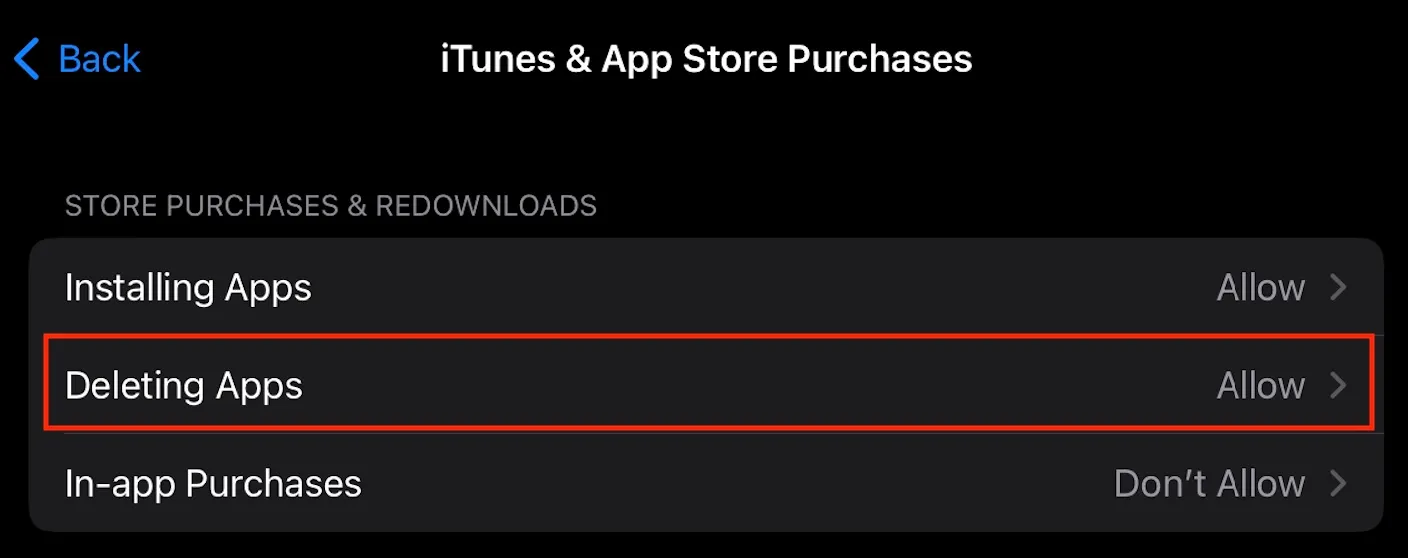
To be able to delete any app, first you need to allow app deletion:
Go to Settings → Screen Time → Content & Privacy Restrictions → App Installations & Purchases → set Deleting Apps to Allow
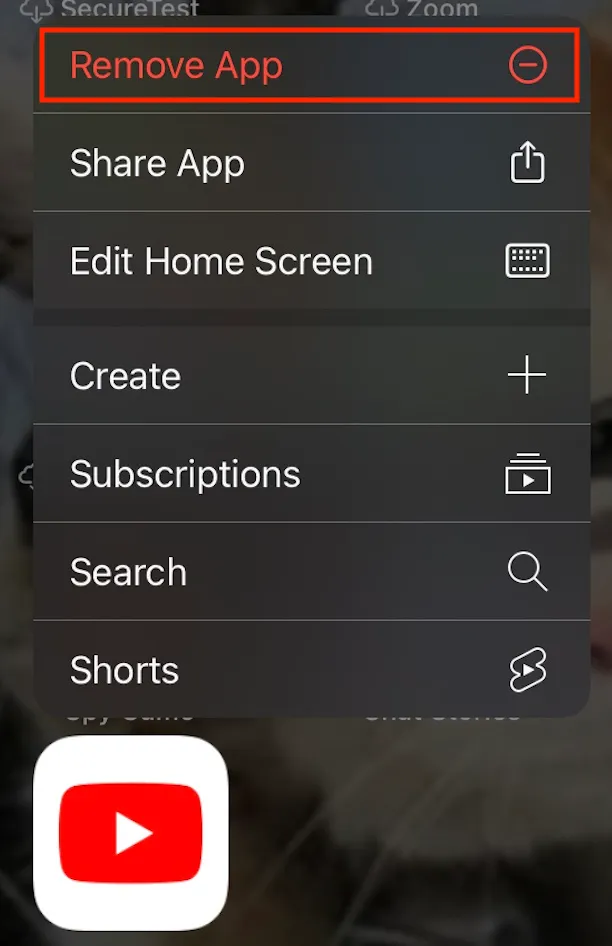
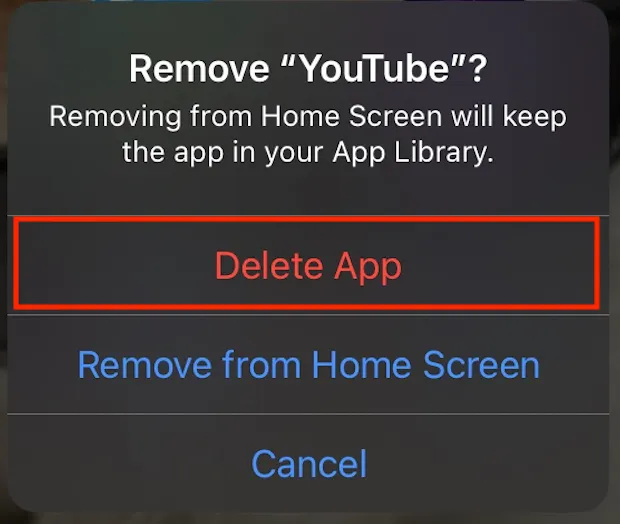
To delete the YouTube app, tap and hold the YouTube icon, then select the Remove App option, followed by Delete App
In addition, if you want to prevent re-installation of the YouTube app, do this:
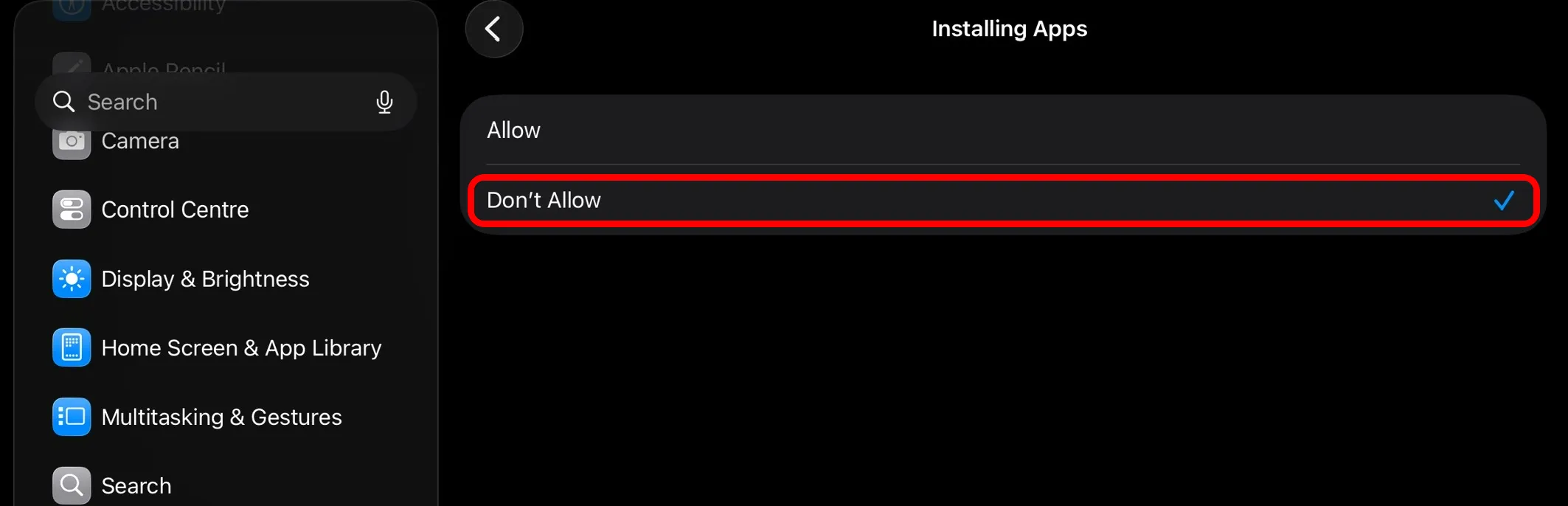
Go to Settings → Screen Time → Content & Privacy Restrictions → App Installations & Purchases → set Installing Apps to Don’t Allow
Set Age Rating Limit to 9+ or below
You can set the Apps content restriction to 9+, which will only allow installation and usage of apps with age rating of 9+ or lower, thus disabling YouTube whose rating is 12+. It is important to note that this will remove / hide any app whose rating is higher than 9+, not just YouTube, so use this method if you are ok with this.
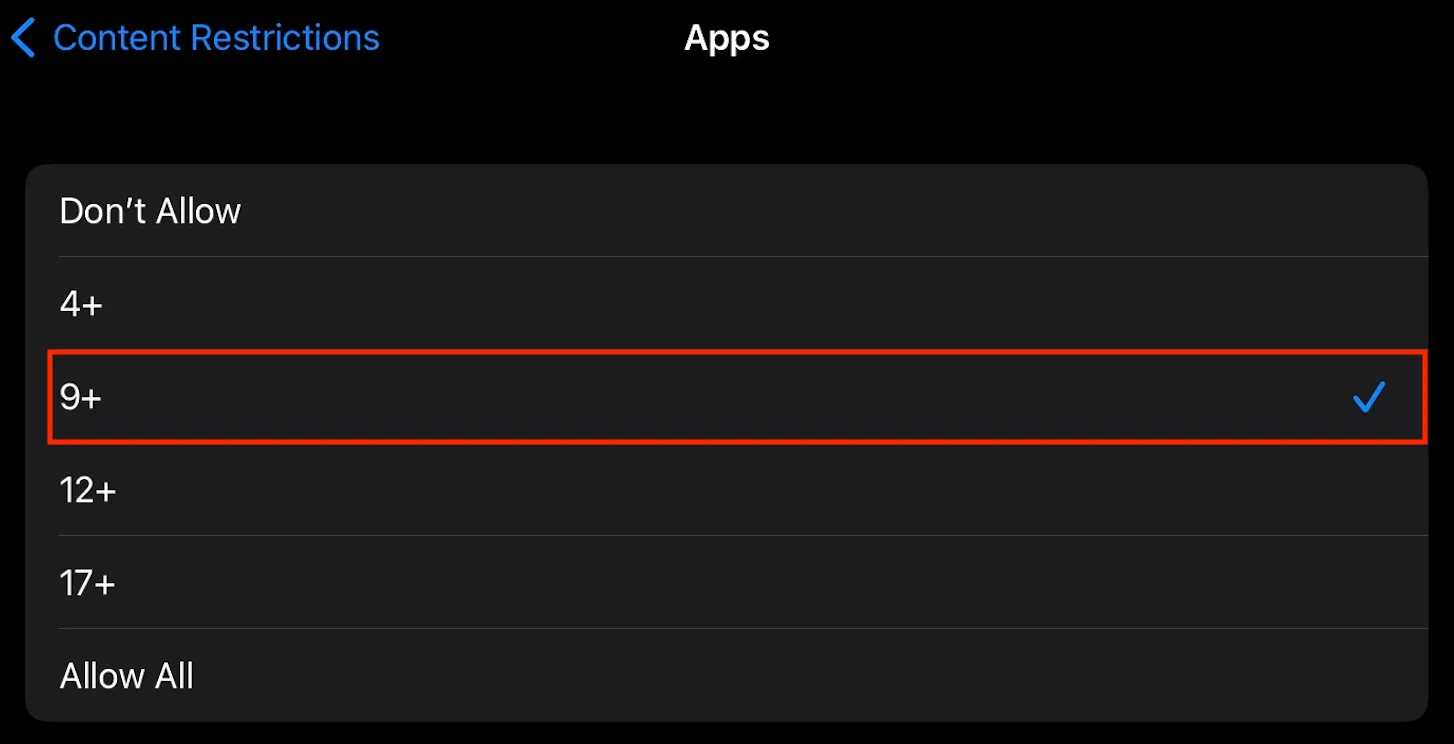
Go to Settings → Screen Time → Content & Privacy Restrictions
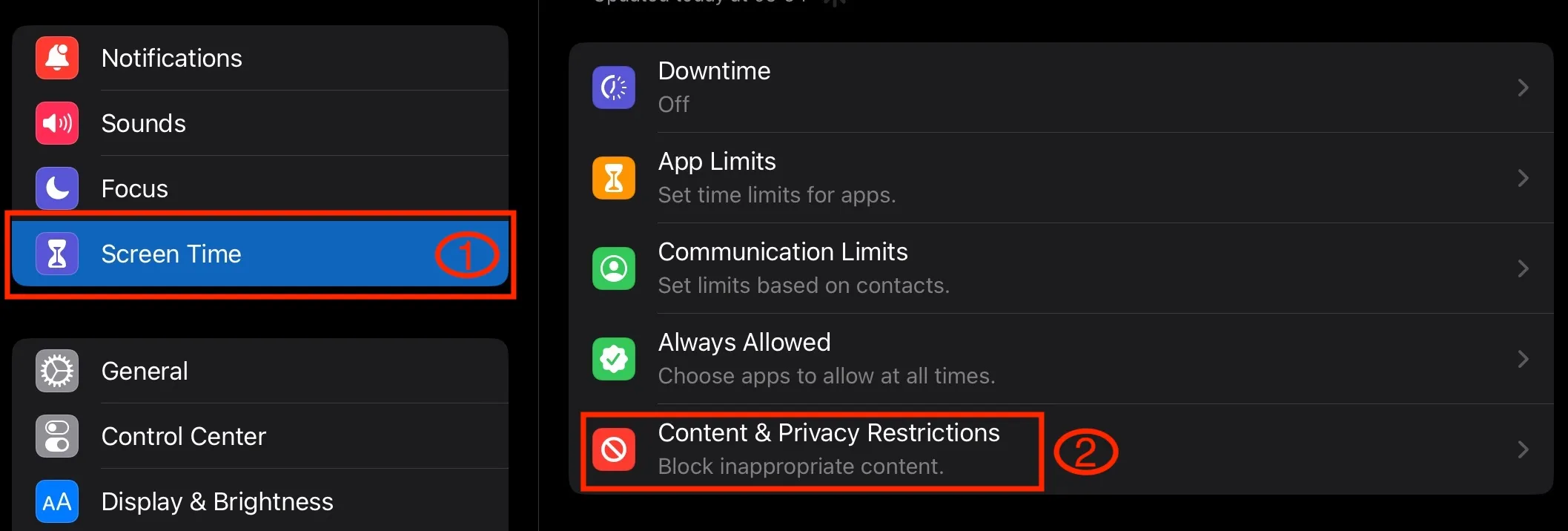
Enable Content & Privacy Restrictions, if you haven’t already. Select App Store, Media, Web & Games (called Content Restrictions on older iPadOS versions)
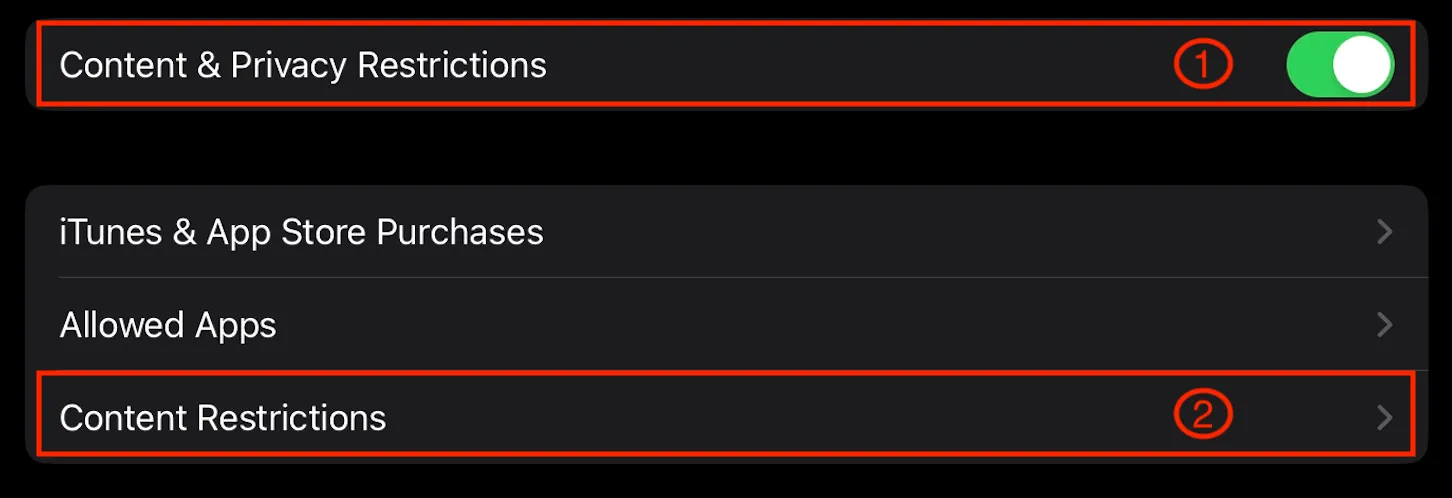
Select Apps
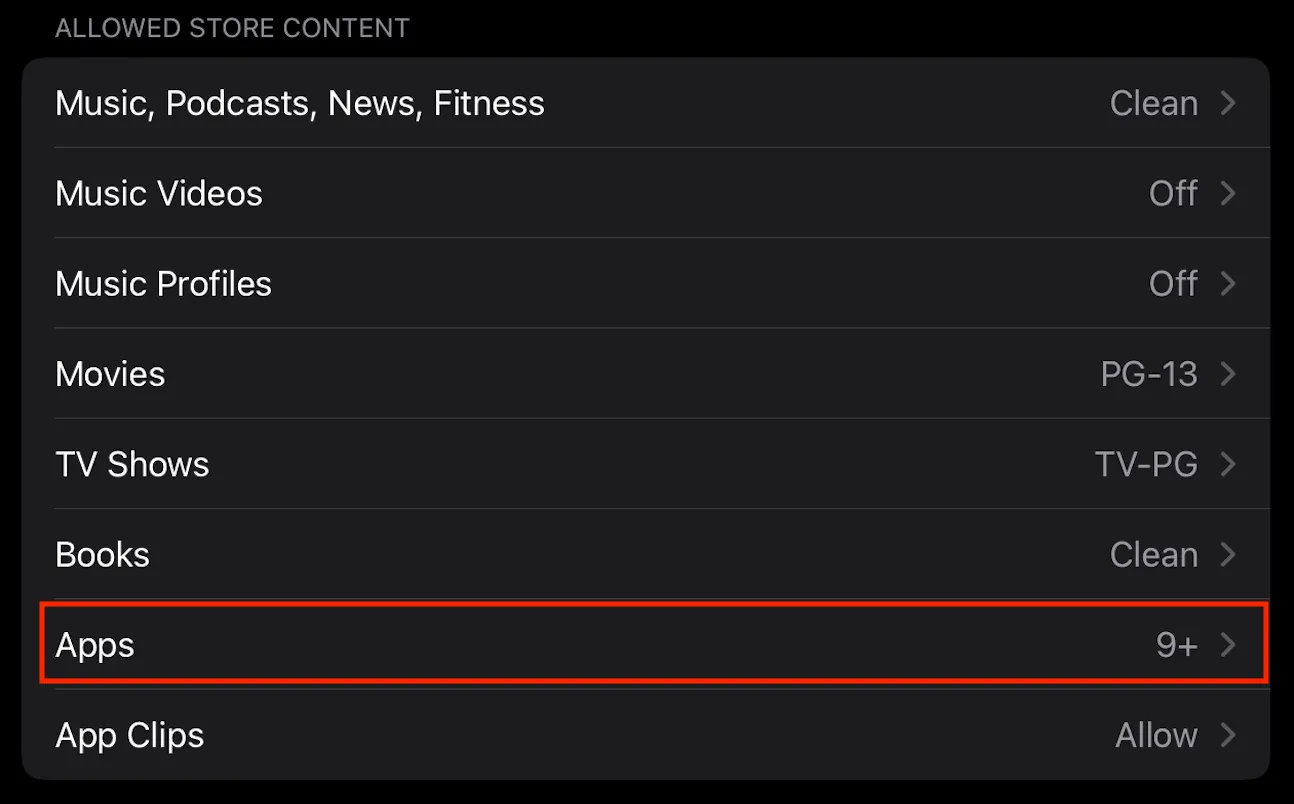
Select 9+
Set Time Limit to 1 minute
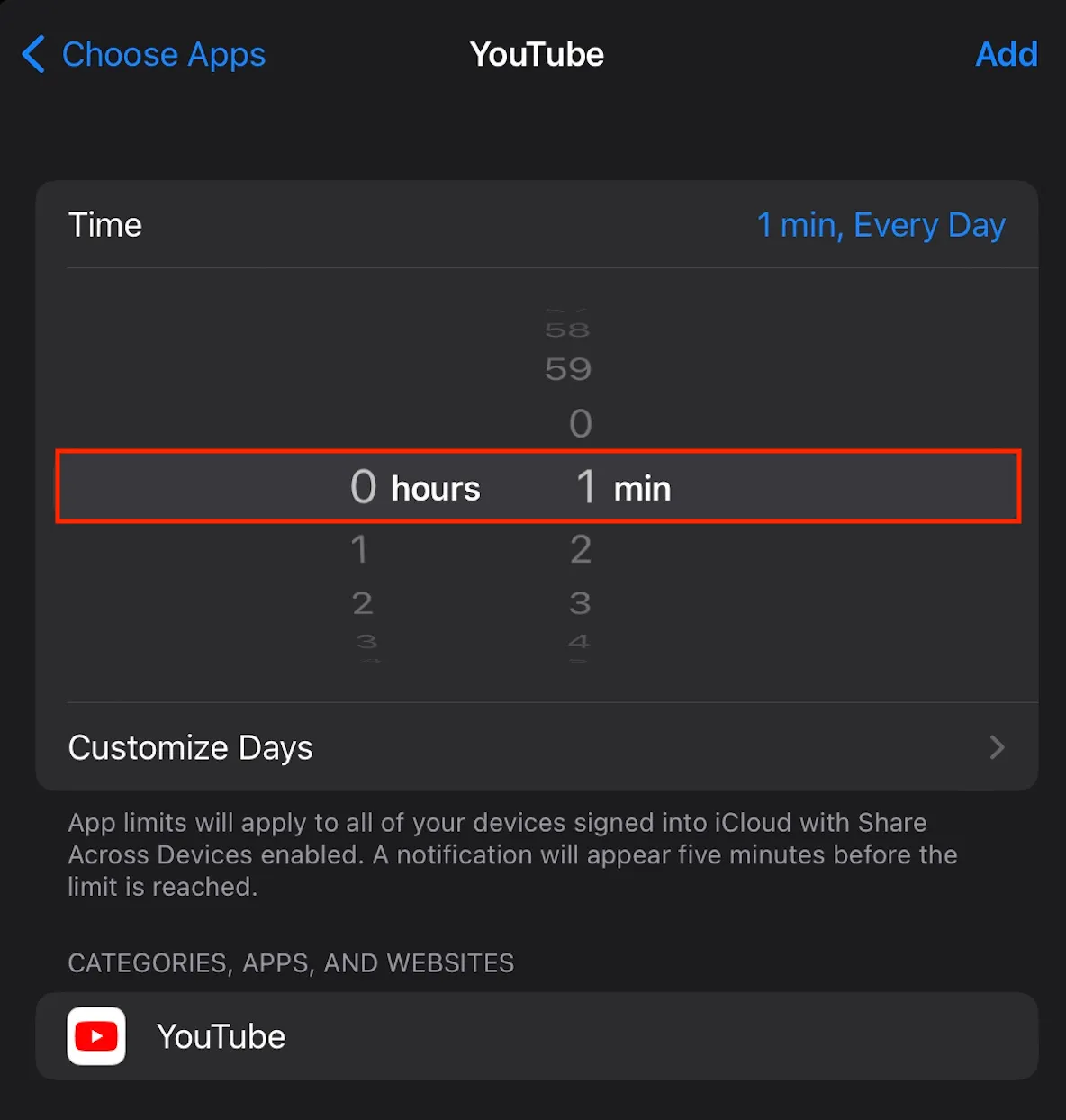
Alternatively, you can set a 1-minute time limit (minimum that Apple allows) for YouTube.
Go to Settings → Screen Time → App Limits
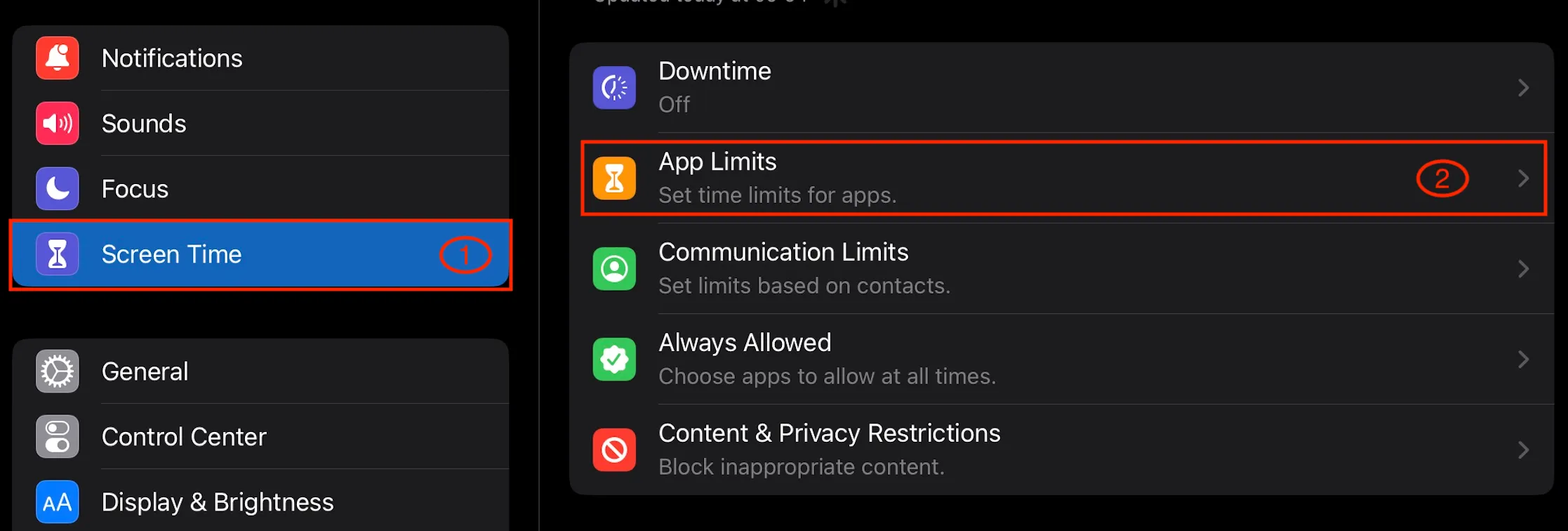
Add Limit or edit an existing limit
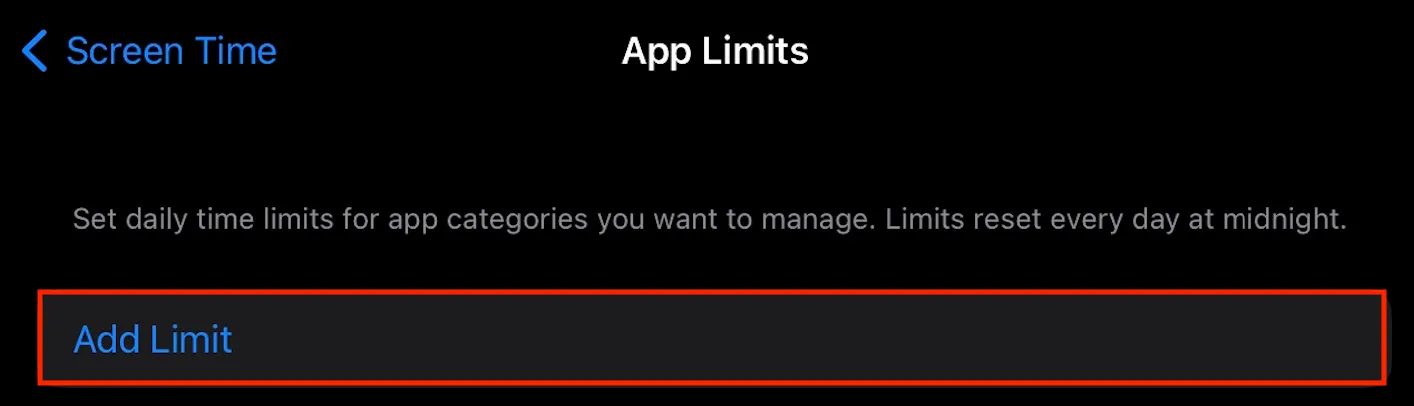
Make sure YouTube is selected and not the entire Entertainment category. We recommend not to use app limits with Cocopine because you will control the screen time from the app itself.
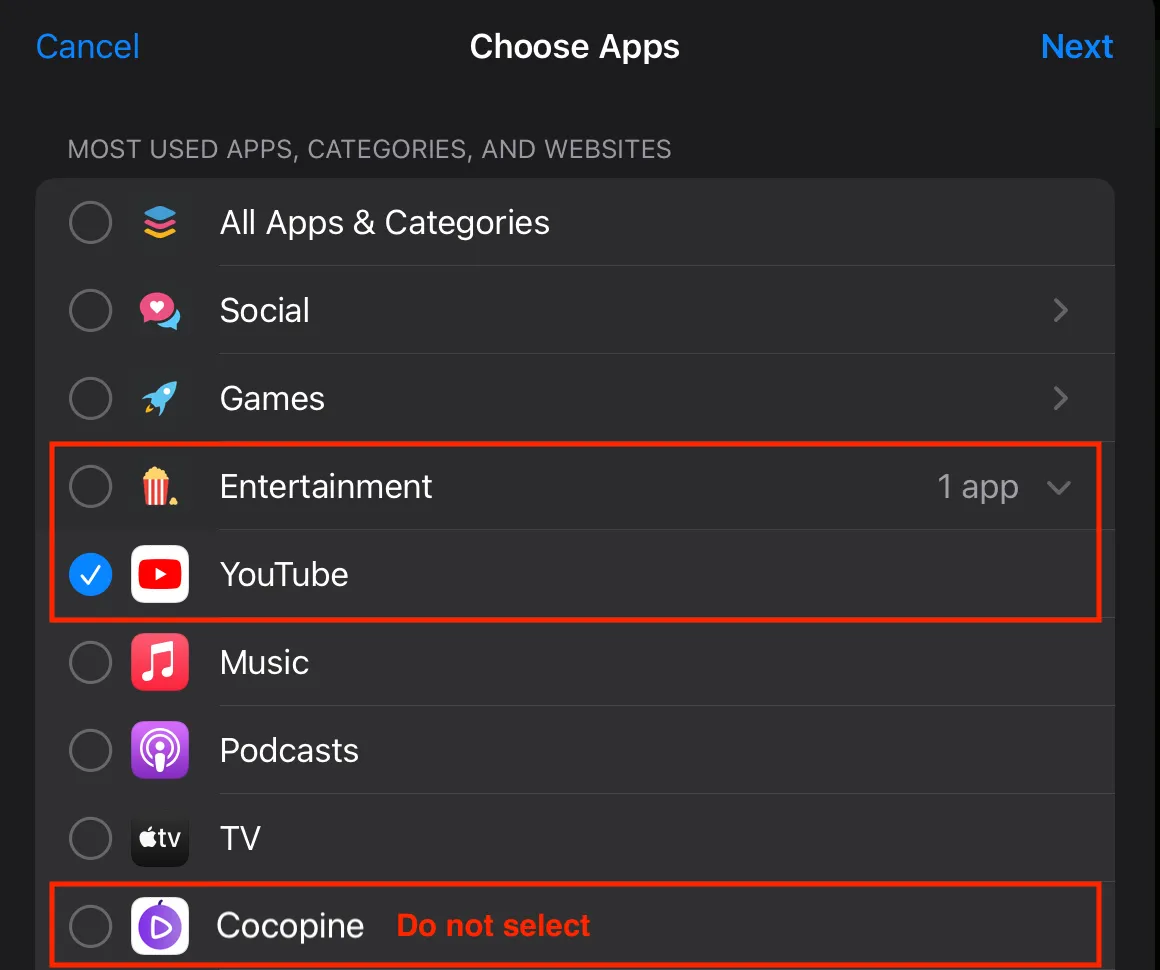
Set the time limit of 1 min - it’s the minimum limit you can set on iOS
How to block YouTube in web browsers
Do not add youtube.com to Screen Time → Content & Privacy Restrictions → Web Content. The Cocopine app plays videos through YouTube’s official player, so blocking youtube.com there will also stop videos from playing in Cocopine. Instead, block the web browsers your child could use to open YouTube:
Turn off Safari
Go to Settings → Screen Time → Content & Privacy Restrictions
Select Allowed Apps & Features
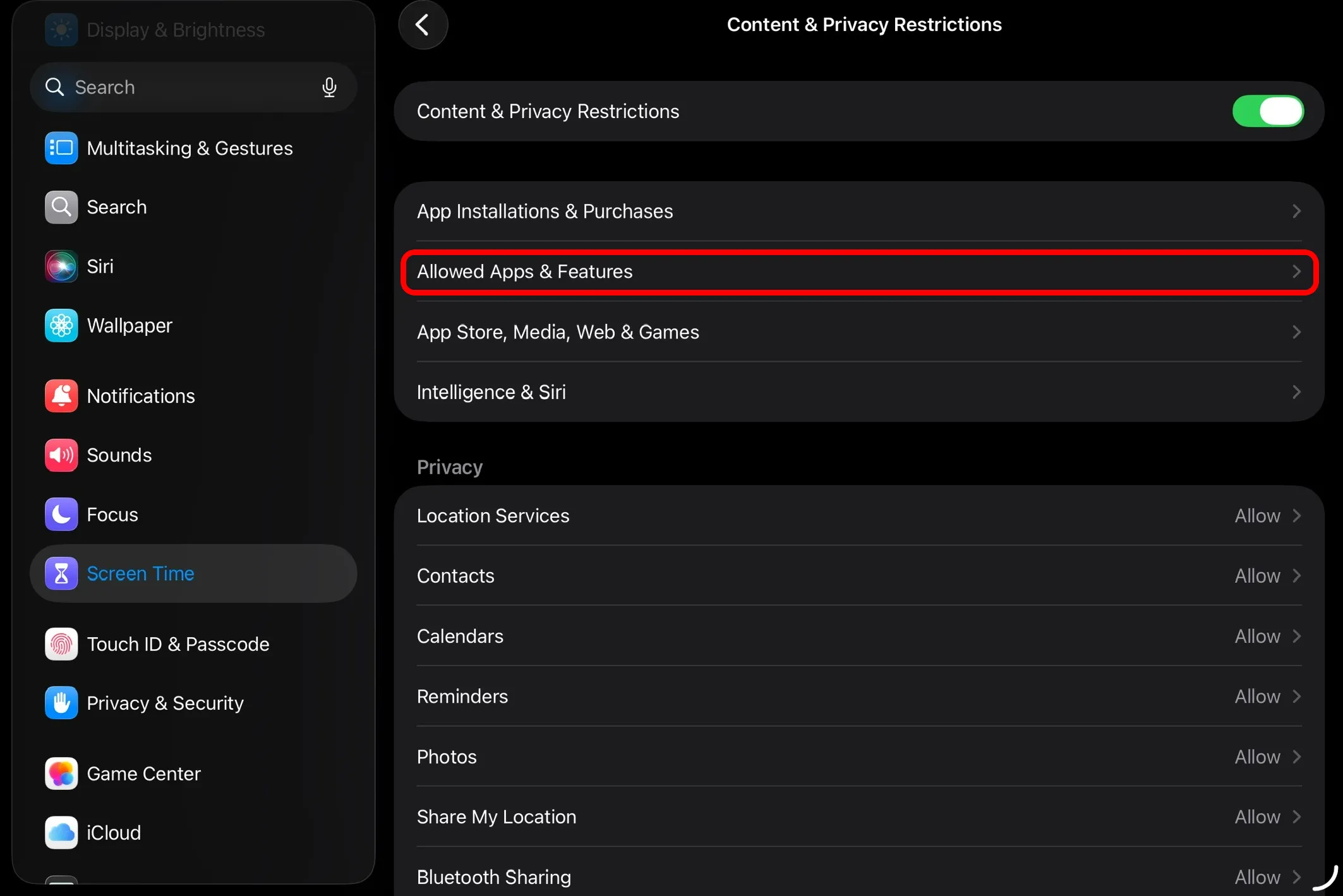
Turn off Safari
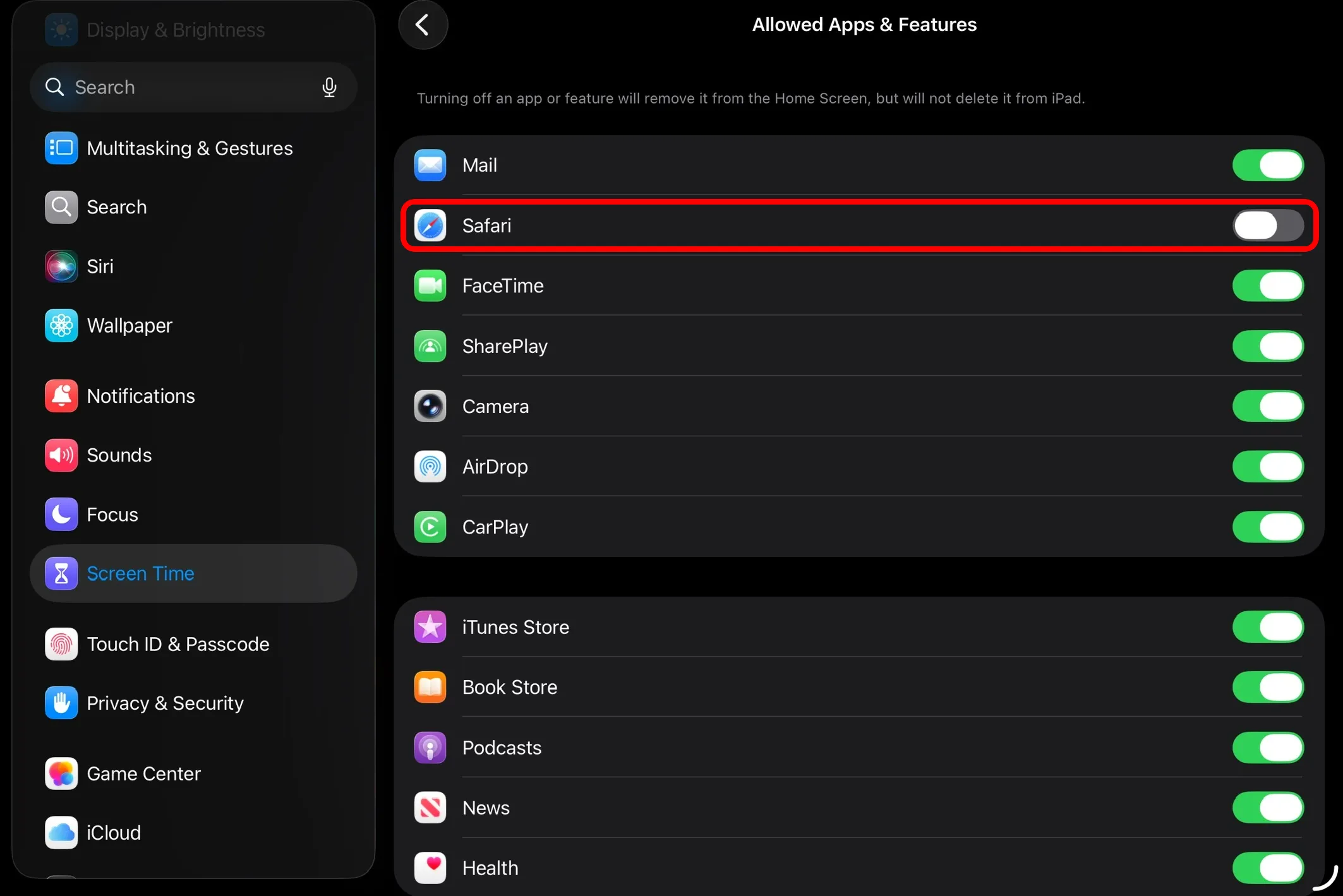
Safari disappears from the Home Screen and links from other apps can no longer open it.
Block other browsers
Browsers such as Chrome, Firefox or Edge let your child open youtube.com just like Safari. If you’ve already set the age rating limit to 9+, these browsers are hidden too, because they are rated for older ages. Otherwise, delete any browsers installed on the device the same way as the YouTube app.
To make sure your child can’t install a new browser:
Go to Settings → Screen Time → Content & Privacy Restrictions → App Installations & Purchases
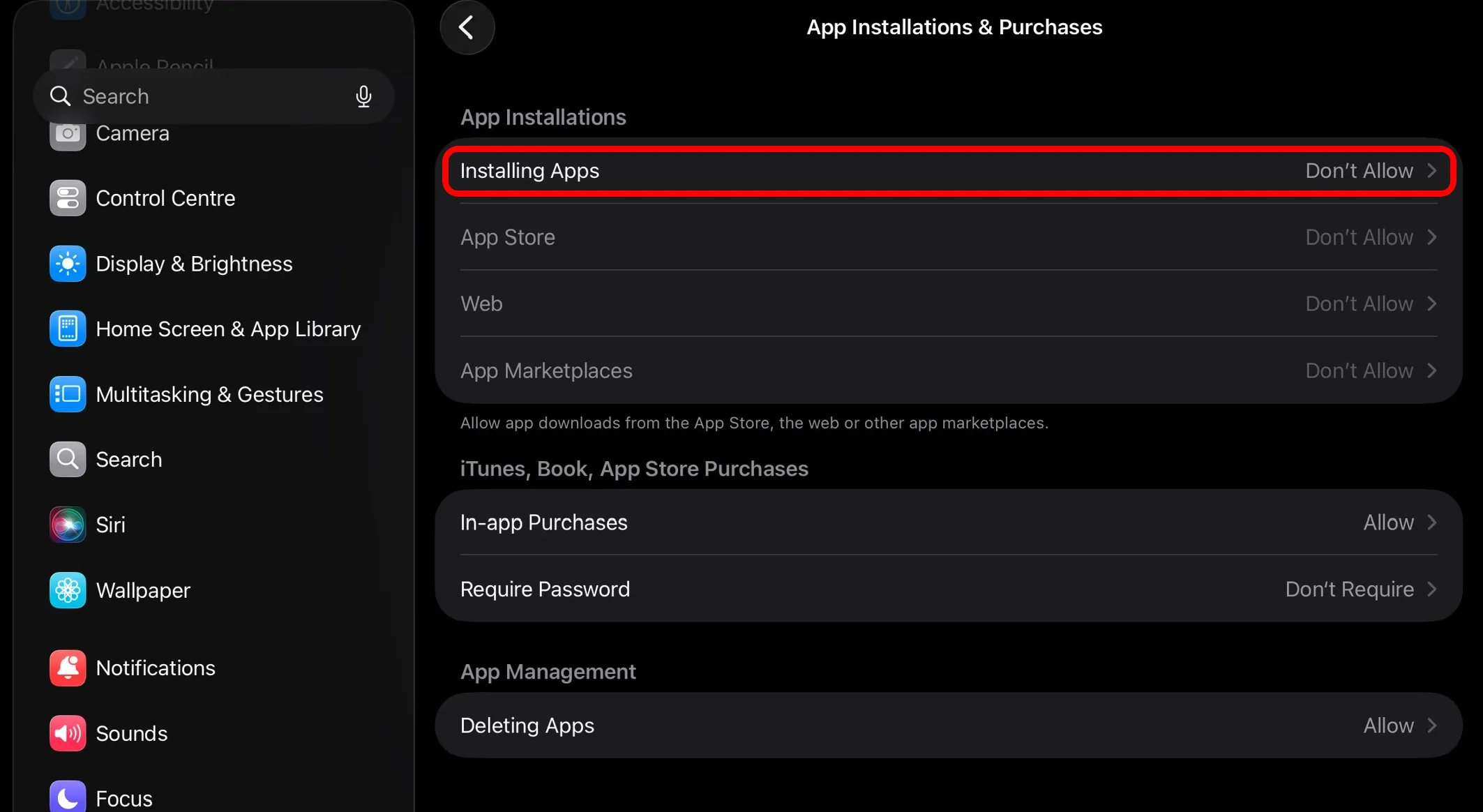
Set Installing Apps to Don’t Allow
Lock the iPad to Cocopine with Guided Access
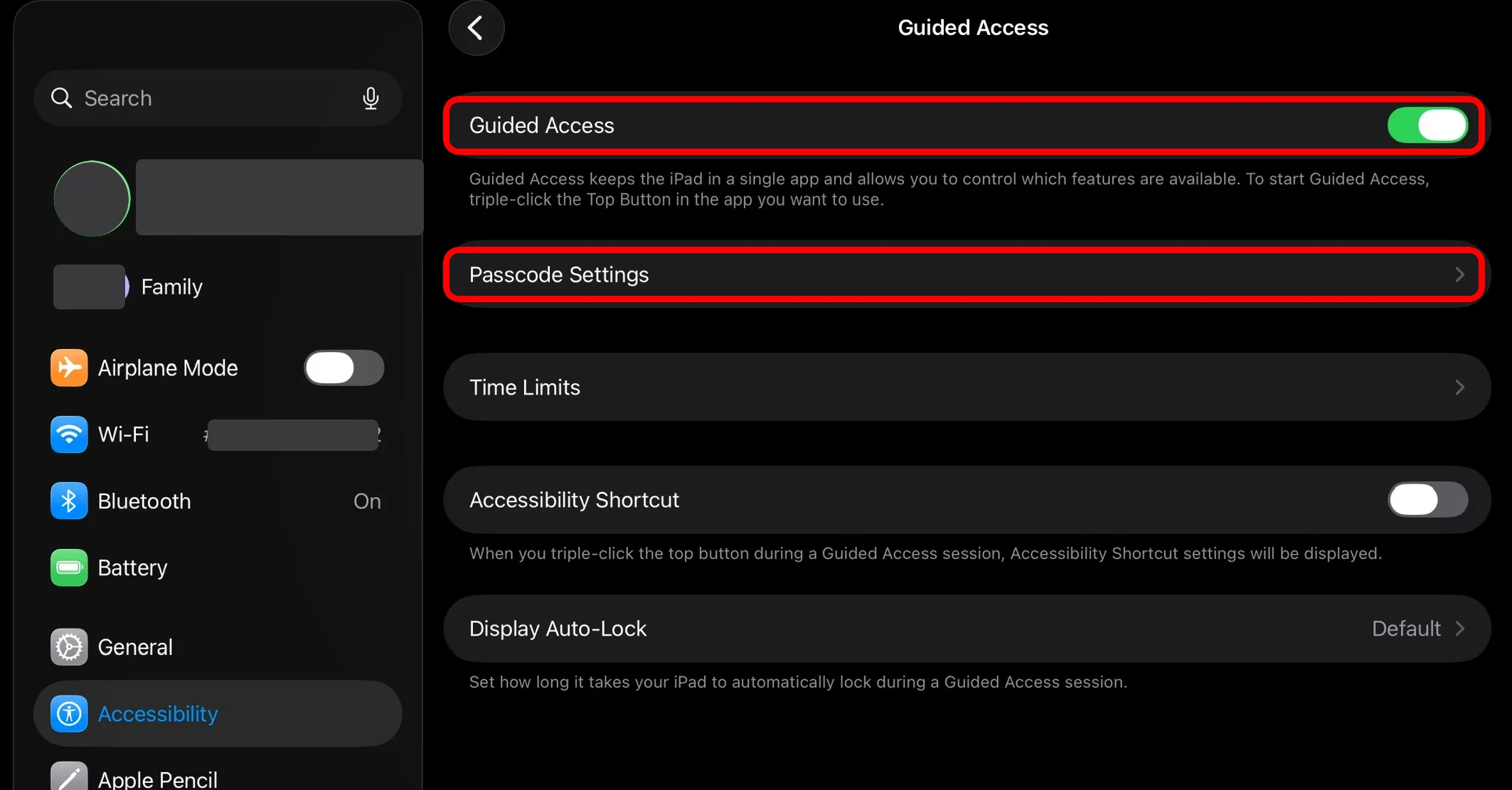
For younger kids, the simplest option is Guided Access. It locks the iPad to a single app, so your child can’t leave Cocopine without your passcode.
Go to Settings → Accessibility → Guided Access. Turn on Guided Access and set a passcode in Passcode Settings
Open Cocopine, triple-click the top button (or the Home button), then tap Start
To exit Guided Access, triple-click the same button and enter your passcode.
Use Cocopine app instead of YouTube!
Now that you have removed YouTube, use the Cocopine app to get peace of mind about your child’s screen time. Shield your child from inappropriate content and create an enriching experience for him or her with educational videos, prescreened intellectually engaging content, courses, and more!